Release Notes
iNSPECTION-lEVEL mEDIA
Dealer-FX is once again delivering on an ‘ask’ from many dealers:
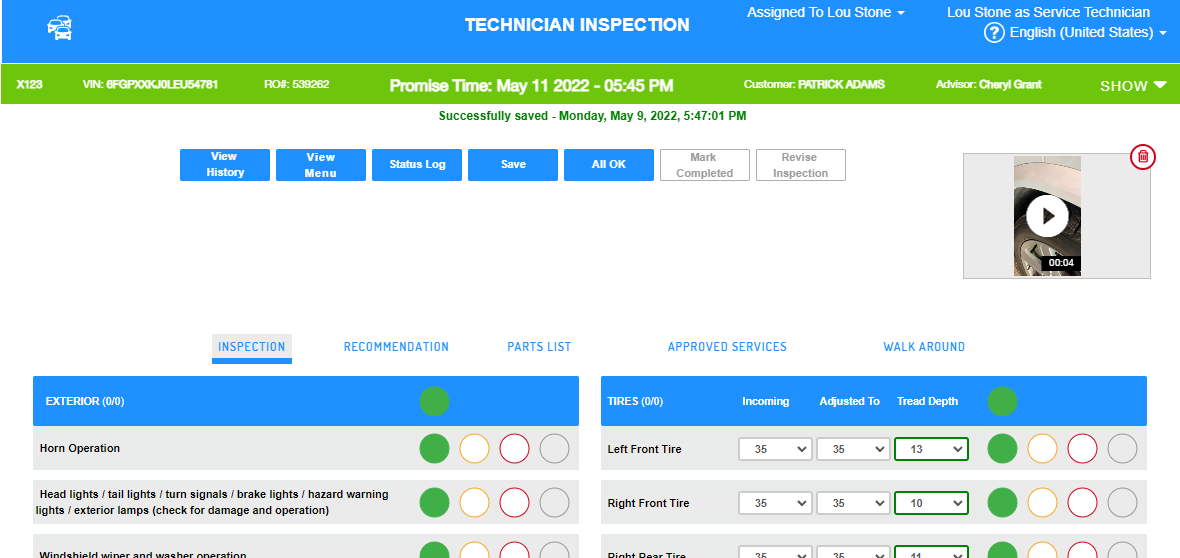
Inspection-level media can be used to :
-
Capture an ‘All Green’ video for the customer (‘Morning Nancy. Everything looks great!’)
-
Record a general message about the vehicle (‘Hi John, your tires will need to be replaced at the next service.’)
-
Include one or more recommendations in a single photo or video (‘Hi Fred. I want to show you a couple of things under the hood.’)
Inspection-level media is captured using Visual MPI in the same way it is for recommendations. More information about Visual MPI is included in Appendix: Visual MPI.
Adding Inspection-Level Media
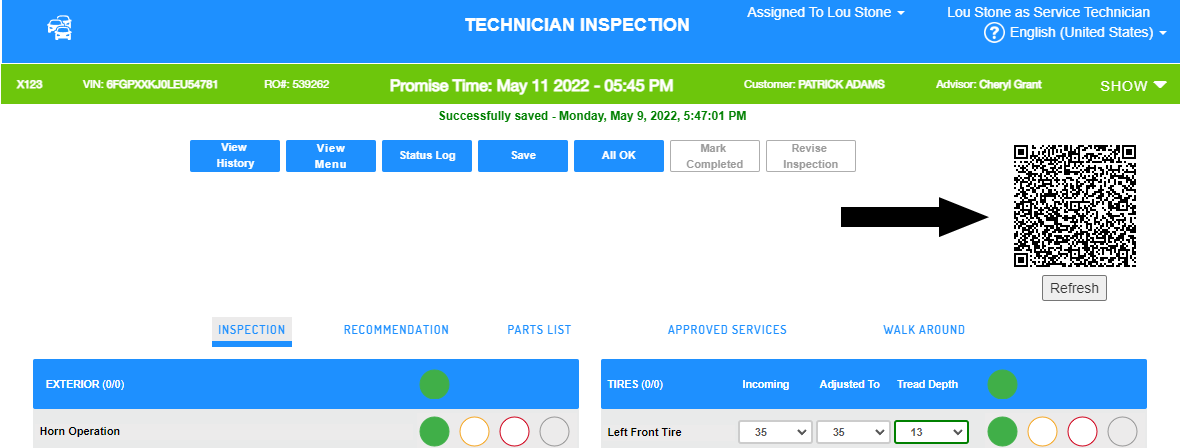
Initiate the media capture from the Inspection tab of Technician Inspection (TI).
-
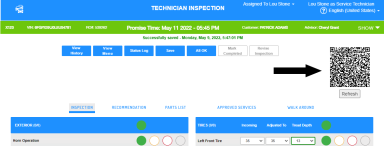
Scan the QR code, or click it:
-
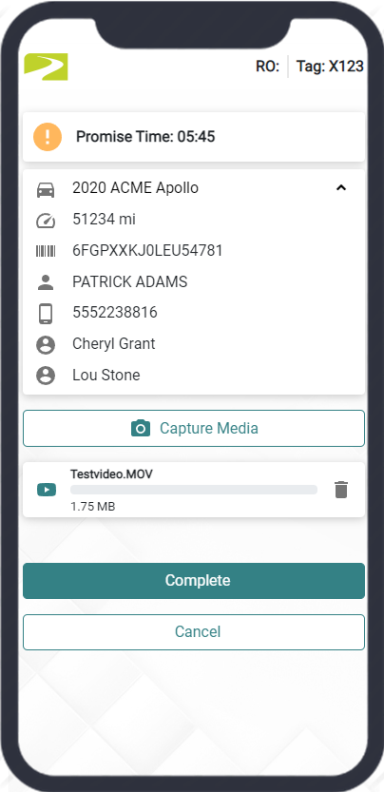
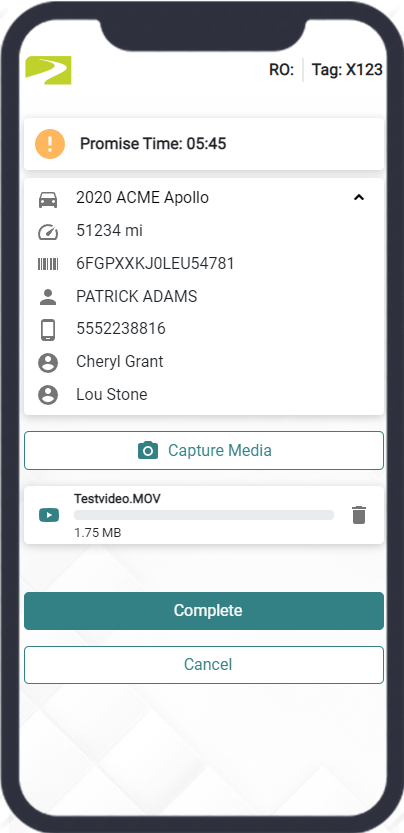
Visual MPI opens so you can capture the photo or video:
-
Back on the Inspection tab, select "Refresh" under the QR Code to complete loading the media.

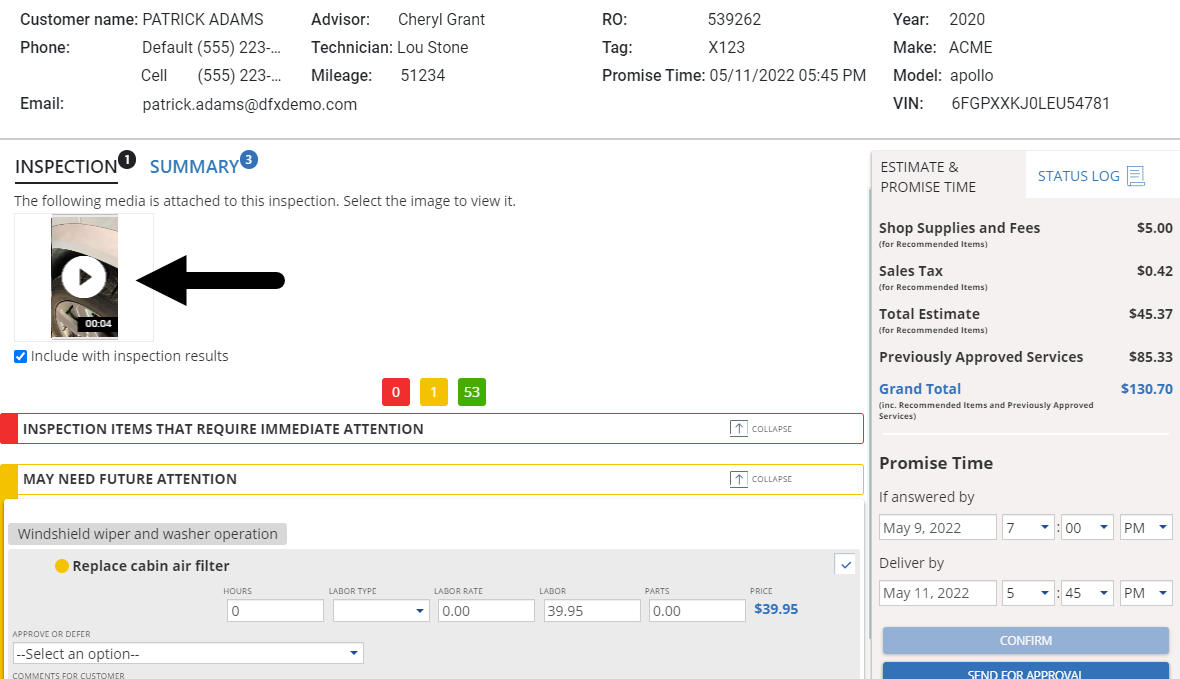
Once the media is loaded, you can select the thumbnail to expand and review it.
-
The photo or video is included with the recommendations in
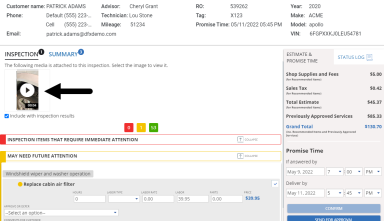
Note that:
-
The inspection-level media thumbnail appears at the top of the Inspection tab.
-
Recommendation-level media still appears with the associated recommendation or concern.
-
The media is not currently included in the Inspection Report PDF.
-

-
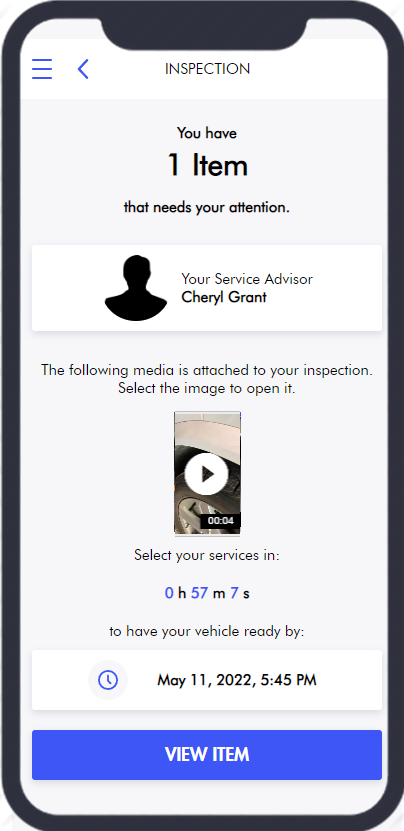
In Digital MPI, the media thumbnail appears on the first screen where the customer will be most likely to open it:
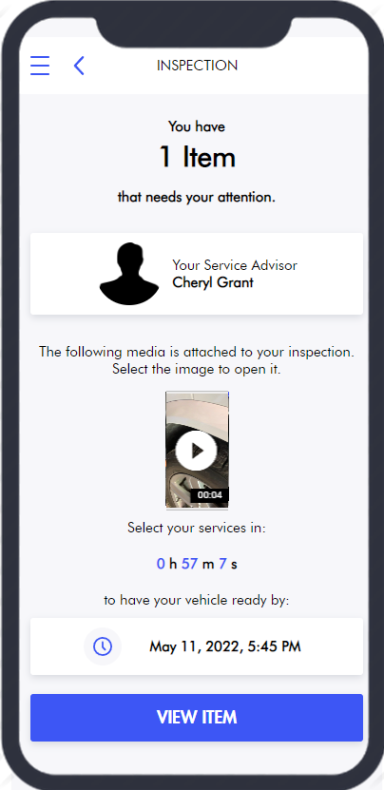
New ‘All Green’ Message Landing Page
As part of this update, a new first screen has been introduced for any Digital MPI message communicating an ’All-Green’ inspection:
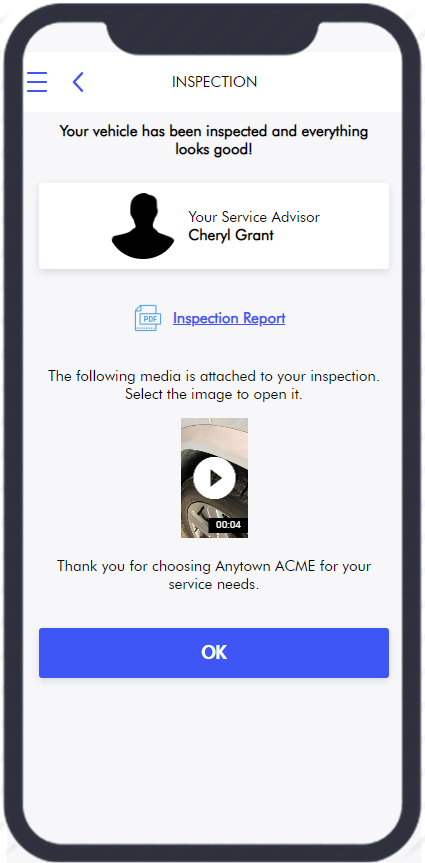
Note the following changes:
-
There is a clear message at the top that everything is good.
-
A link to the Inspection Report PDF is included.
-
Any inspection-level media thumbnail will be included.
-
By tapping “OK”, the customer proceeds straight to the Service Summary screen. The Inspection screen is no longer shown for ‘All Green’ messages.
Note: If the dealership is configured for automatic ‘All Green’ messages, the customer still receives the text or email directly from the Technician but it may now contain inspection-level media.
Configuration
(Dealer Admin)
The following setting controls media capture in Technician Inspection (i.e. Visual MPI/Inspection Cam):
Admin Settings > Configure > MPI Options: ‘Enable Media Capture’
If the dealership is already enabled, then inspection-level media is automatically available.
Note: As part of this release, the setting has been renamed from ‘Enable Inspection Cam’ for clarity.
Appendix: Visual MPI
More information about using Visual MPI is included in this short video. Note that it demonstrates using Visual MPI for recommendation-level media, and does not demonstrate inspection-level media at this time.
Contact