Release Notes
Appointment Override
With this release, Dealer Administrators and
The feature will be especially useful for
Overriding an Appointment Block
In Appointment Manager’s Time & Advisor page, if a time slot is blocked (appears red), it can still be booked using the override function.
A time slot may be blocked, or overloaded already, because of the following AM Administration settings:
-
Service group limits
-
Transportation Option availability limits
-
Daily Labor Hours limits
-
Maximum number of appointments per time slot
-
Time slot blocked (or locked on the Day View )
-
Advisor calendar restrictions/availability
-
Department calendar restrictions/blocks
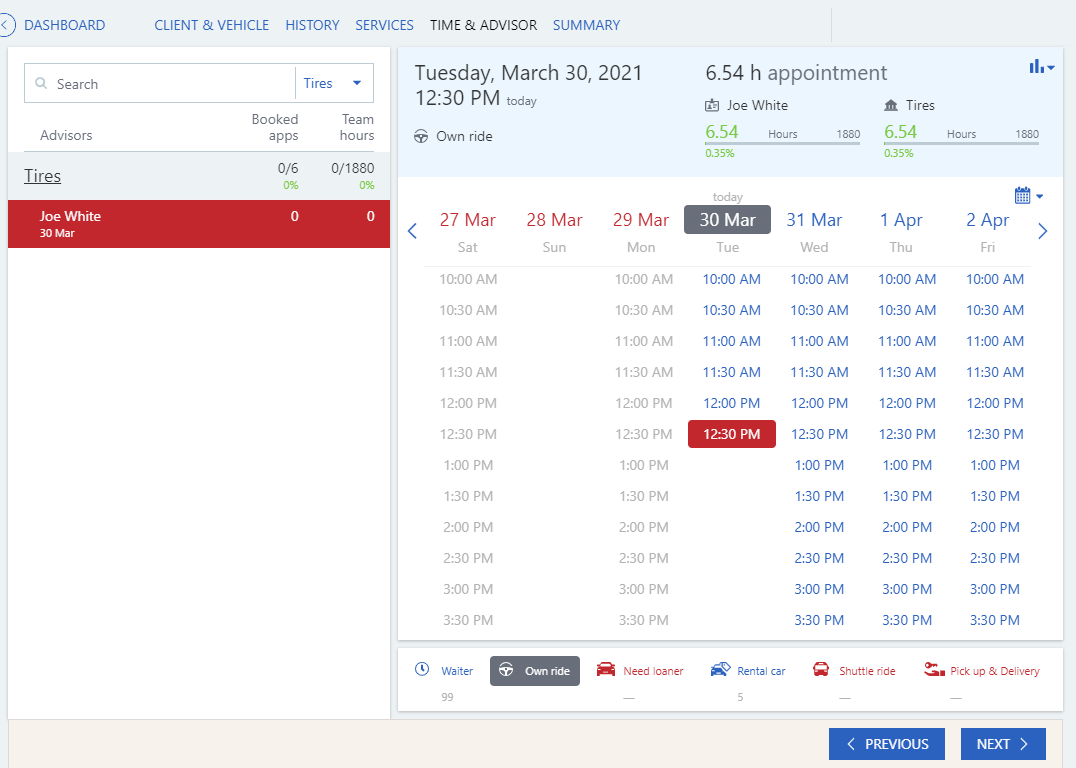
If the time slot is not available because it is not within the working hours of the department (as specified on the Department > Info tab in AM Administration) the time is not shown at all and cannot be used for an override appointment.
Note: A blocked time slot cannot be selected directly from the Day or Week view when initiating a new appointment. It can only be selected on the Time & Advisor page then overridden.
A pop-up warning appears when the user clicks "Next" on the Time & Advisor page indicating that this is an override situation.
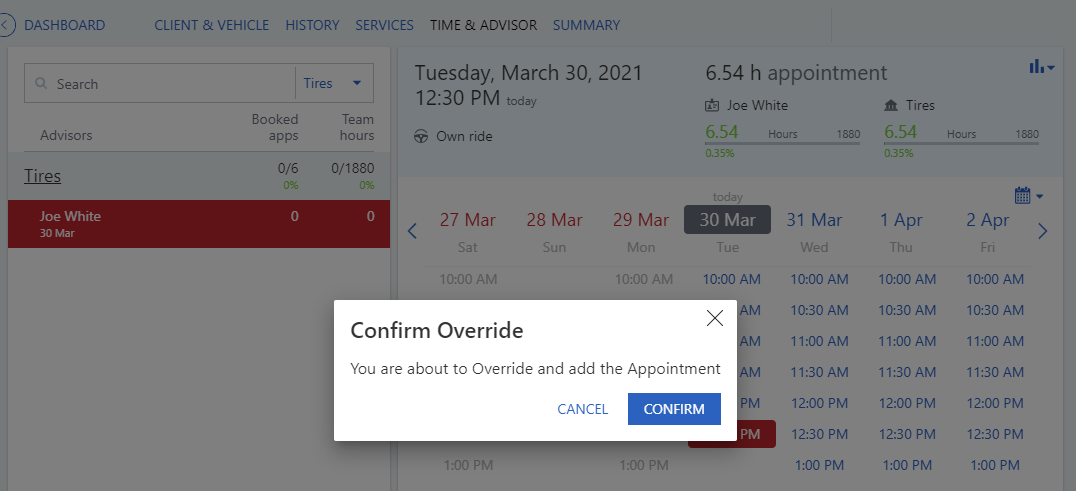
Click “Confirm” to accept the override and continue.
An "Override" indicator  is used to flag this as an override appointment on the Summary page:
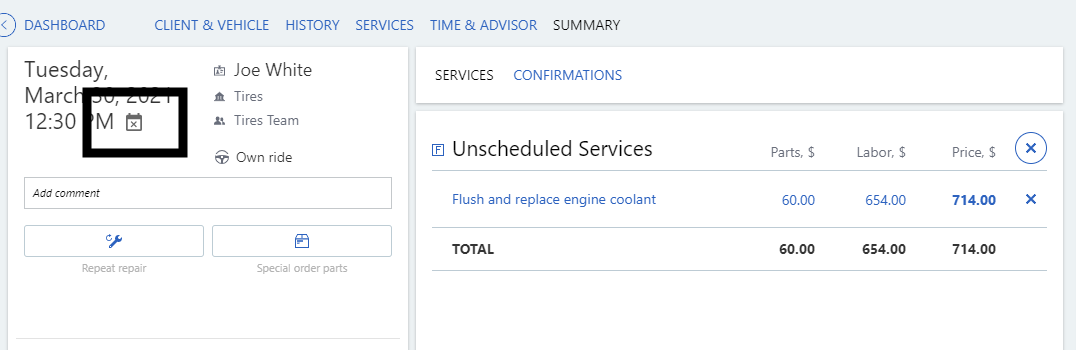
The override action is also captured in the appointment Change History.
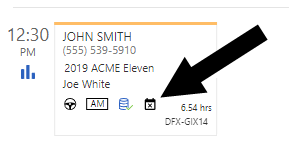
The Override indicator appears with the appointment throughout the application: Day view, expanded Week view, List view and Search view:

Override Used has also been added to the appointment Filter options and Quick Stats totals:


Modifying an Appointment in Override
-
Only a user authorized to perform overrides can edit an existing appointment in override status, including changing customer information, services, transportation option or time slot.
-
If the appointment is later moved to an unblocked time slot, it is still flagged as an Override appointment.
-
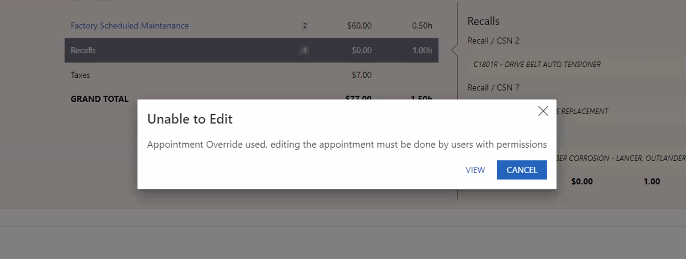
Users without override authority will only be able to view the appointment details if they try to edit it:
-
From the Day or Week View, you may also ‘drag-and-drop’ an override appointment tile into a different time slot, but only if that time slot is available (unblocked).
Note: Moving an appointment using drag-and-drop may result in a change in
Configuring the Override Option
(Dealer Administrator only) First, contact
Note: The admin setting changes can take up to an hour to be effective.
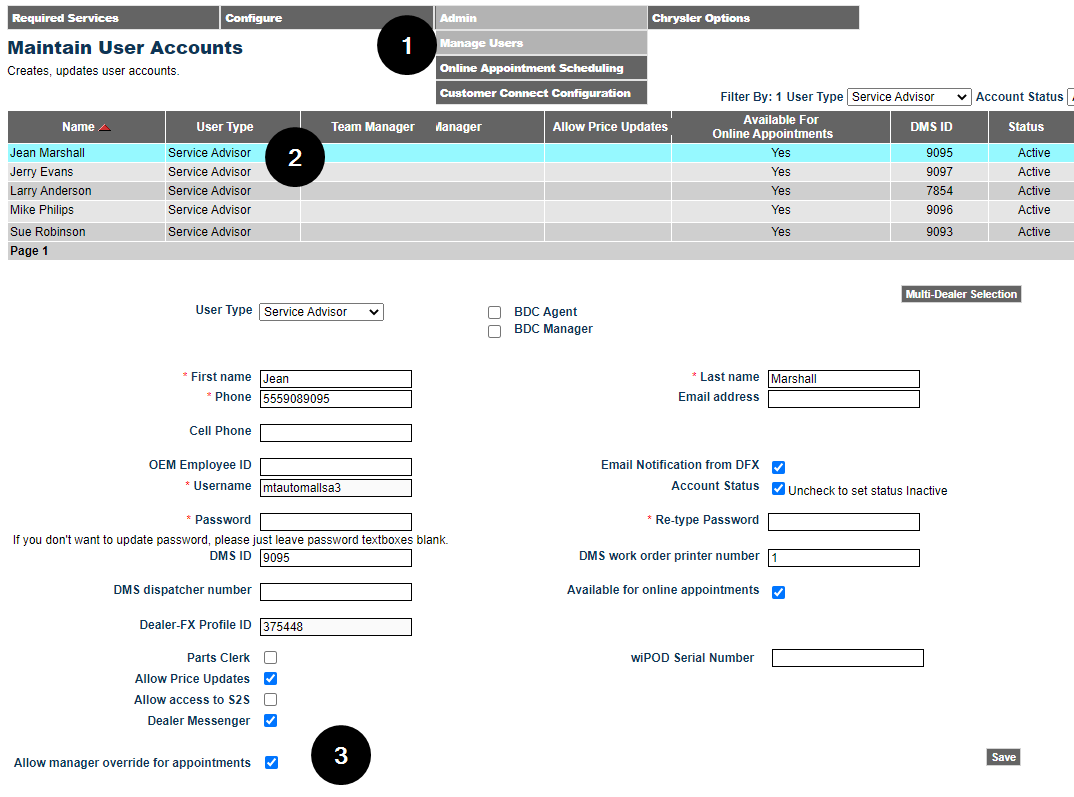
If you want to extend the option to one or more
-
Go to Admin Settings > Admin > Manage Users
-
Select the
-
At the bottom of the page, select (check) Allow manager override for appointments then click "Save"
Minor enhancements
-
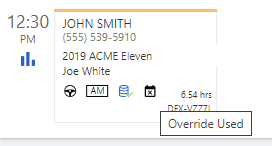
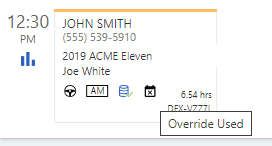
To accommodate the additional Override indicator, all appointment indicators have been reduced in size on appointment tiles. Also, you can hover over an indicator to see the associated definition:
-
The List and Search results hide additional indicators if there are more than four:

Open the appointment details to see all indicators.

Bug fixes
- Resolved a problem with the Search feature in Appointment Manager when searching for services.
- Resolved a problem with text wrapping on the Concerns page.
- Resolved an intermittent problem causing duplicate appointments to appear.