Release Notes
TI / Service Library Parts Catalog Integration
Technician Inspection (TI) is now integrated with Service Library’s Parts Catalog. VIN-specific parts can be easily configured in Service Library by recommendation and exported directly back to the MPI.
Initiating the parts integration
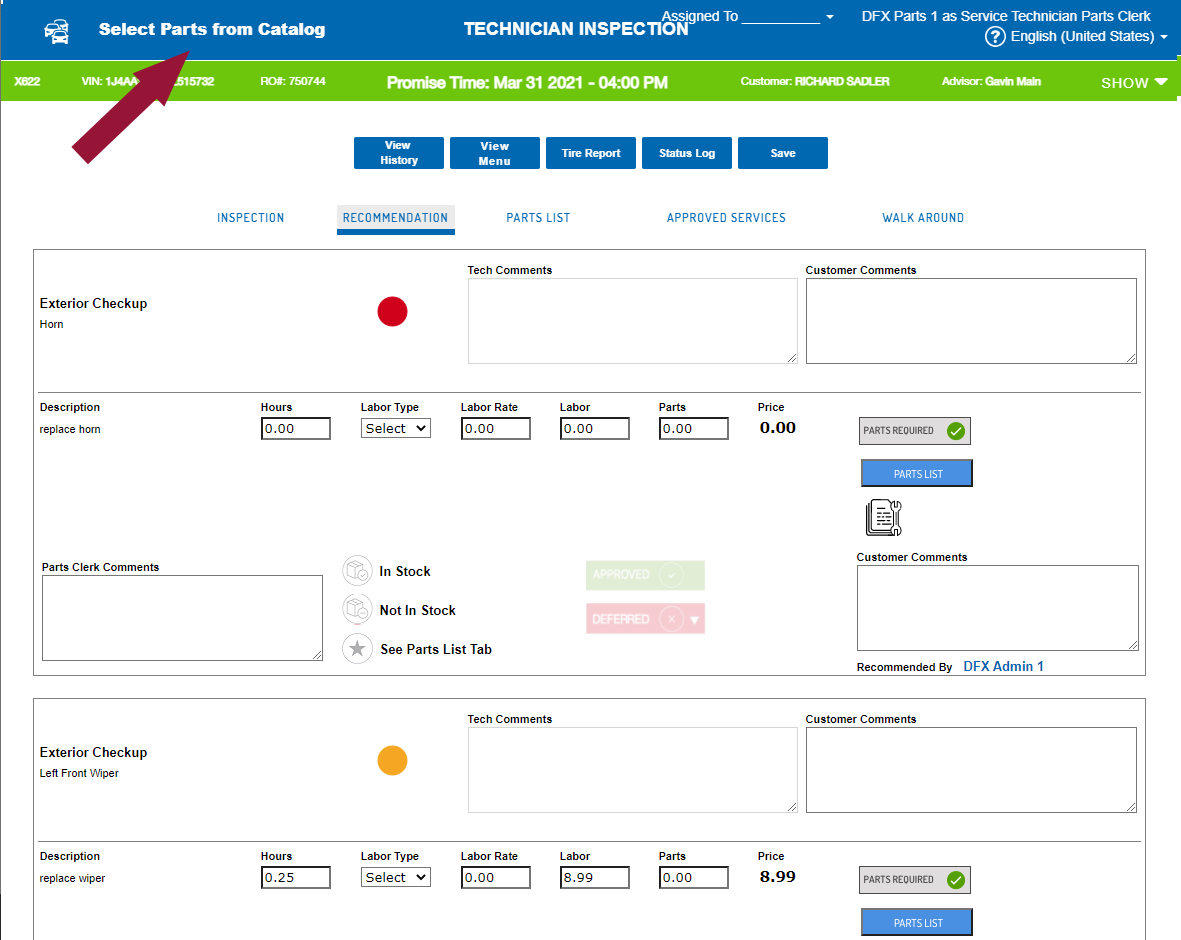
When completing a parts request for one or more MPI recommendations in TI, click “Select Parts from Catalog” on the Recommendations page.
Service Library opens in a separate browser tab with a list of the recommendations from the MPI.
Note: You will be prompted to log in to Service Library only the first time you access it each day.
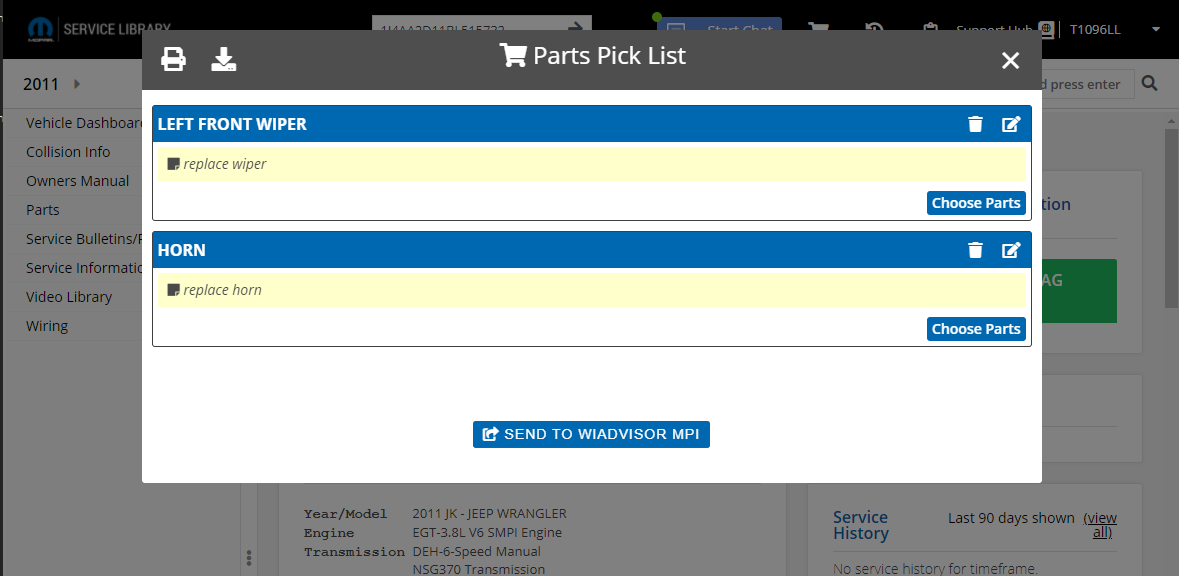
Prepare the parts list and import it back to the MPI as described in Preparing the Parts List in Service Library at the end of this document.
Reviewing the Imported Parts in TI
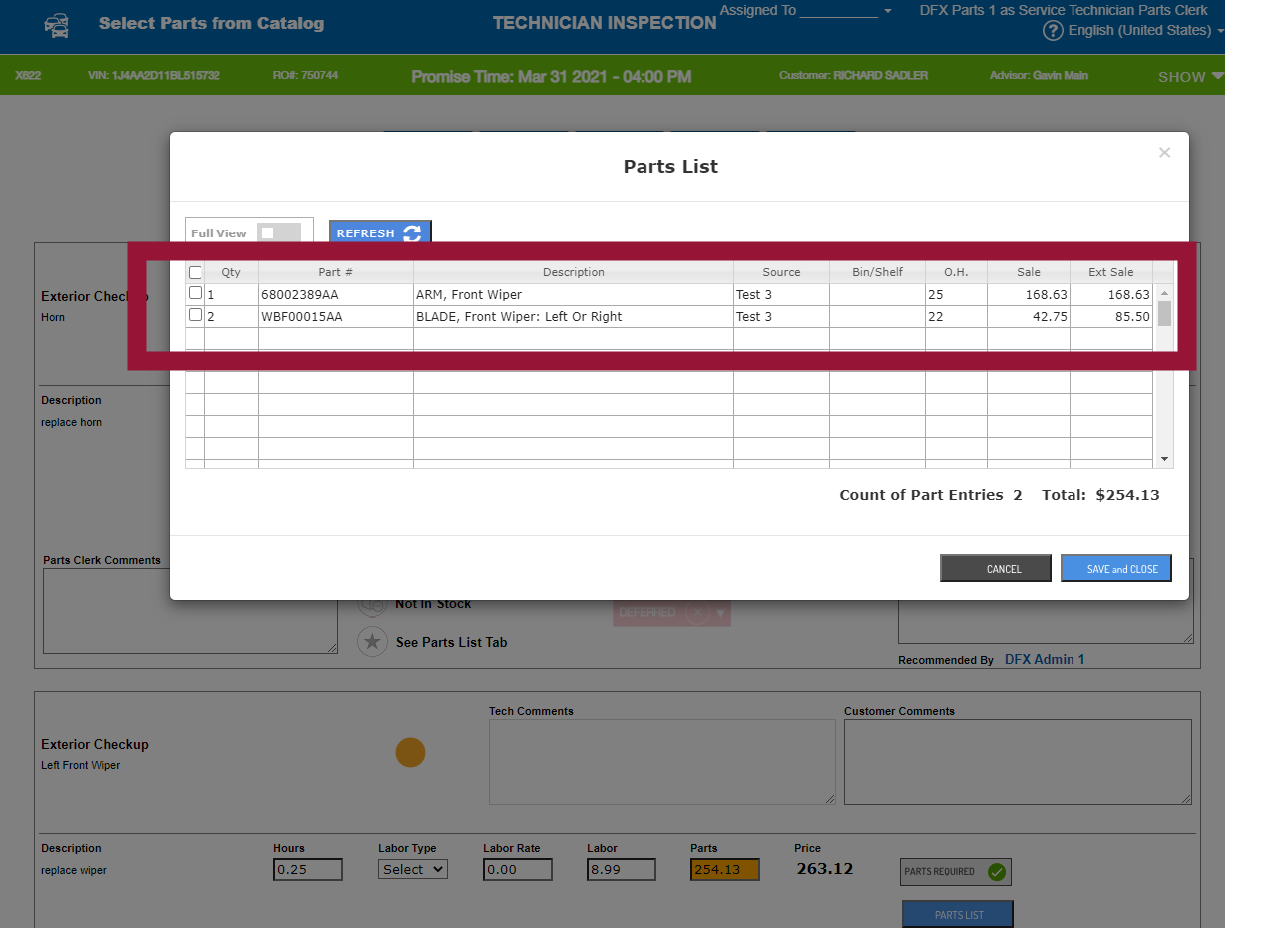
When the parts have been imported into TI from Service Library, they can be reviewed in the Parts List window for the associated recommendation as shown above.
Note: You will need to refresh the Recommendations page to see the total parts price for the recommendation:
The full list can also be seen in the Parts List page:
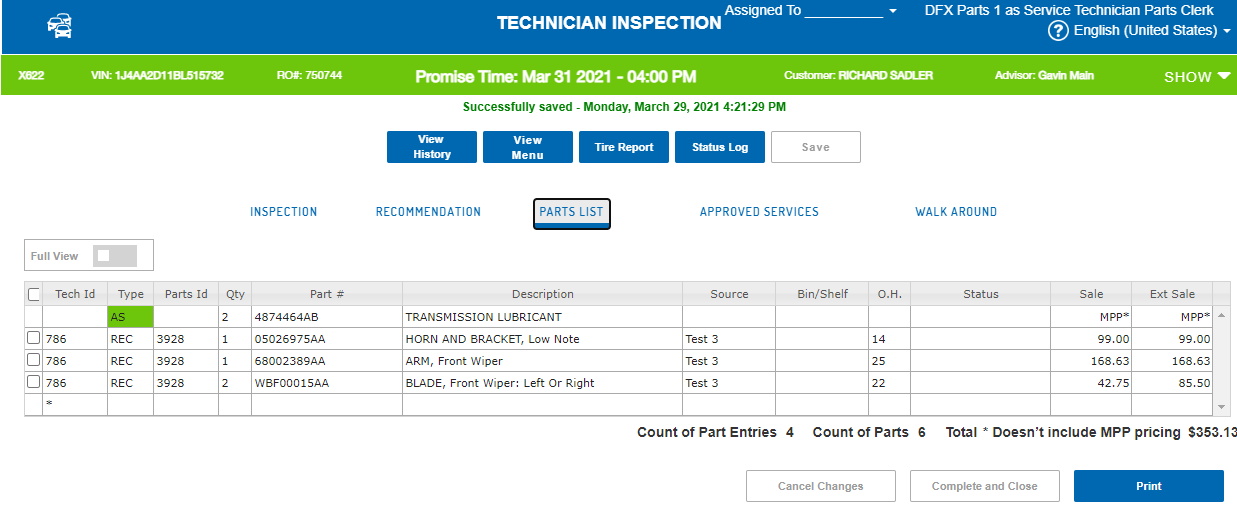
Note: The on-hand inventory count from the previous night is included for each part.
Adding/Revising the Parts List
Additional parts can be added as needed while completing (or revising) the parts request. Note that:
-
New parts will always be appended to the existing parts list in Technician Inspection.
-
Existing parts will not be updated or overwritten, even if for the same part number.
Note: This integration replaces the StarParts import option from TI’s Parts List page.
Preparing the Parts List in Service Library
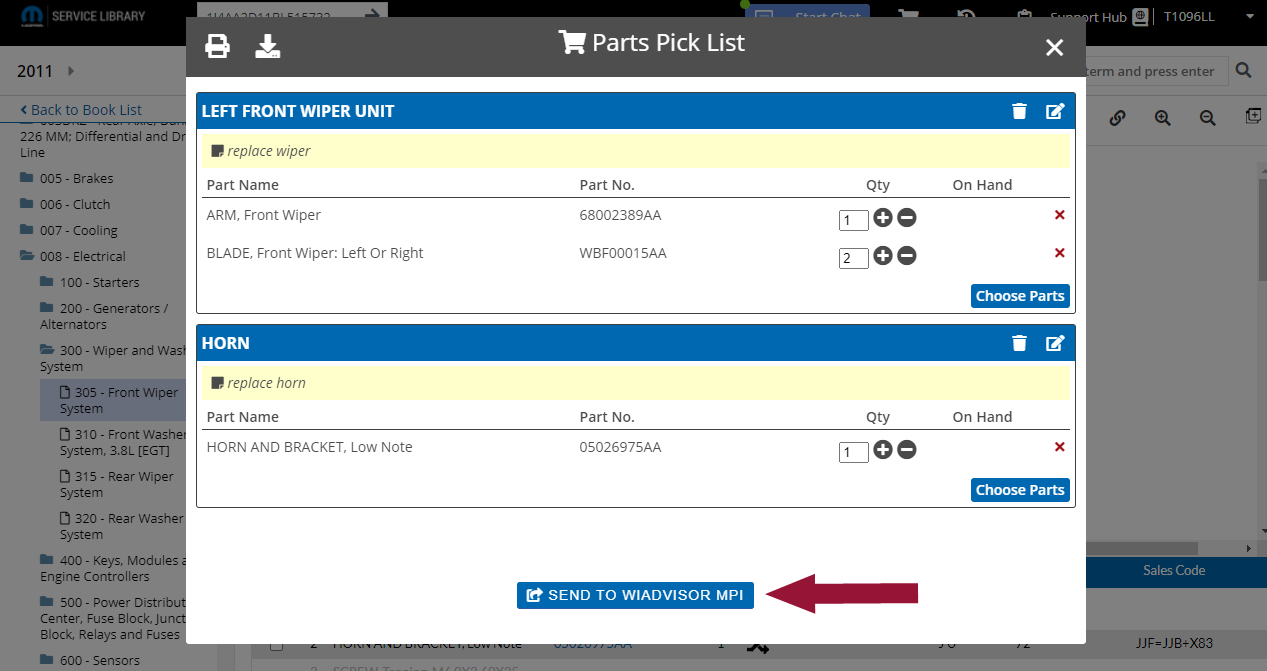
When Service Library is opened from TI, each recommendation is listed in the Parts Pick List pop-up window:
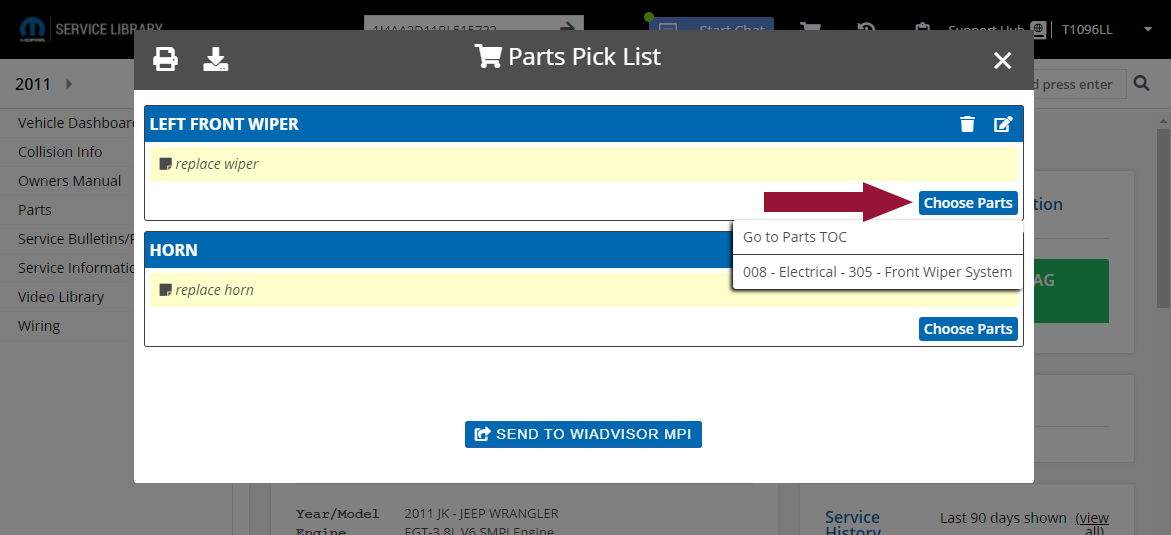
Click “Choose Parts” beside a recommendation. You will be given two options for finding the correct parts:
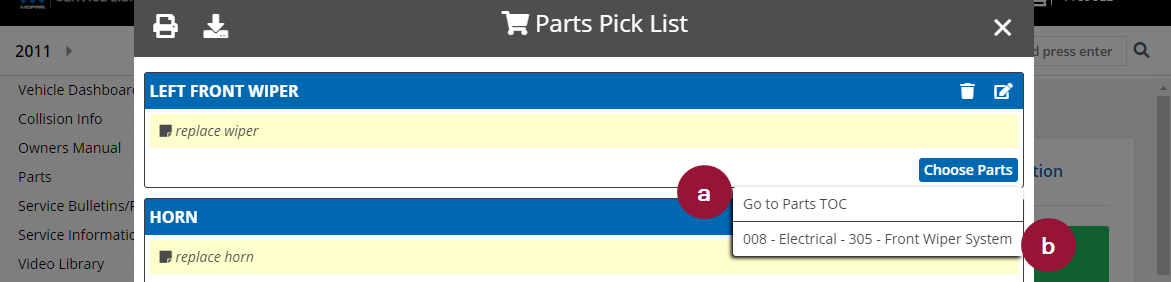
You may either:
-
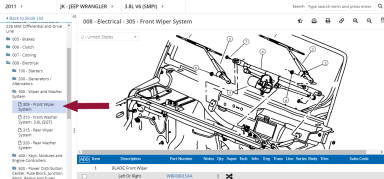
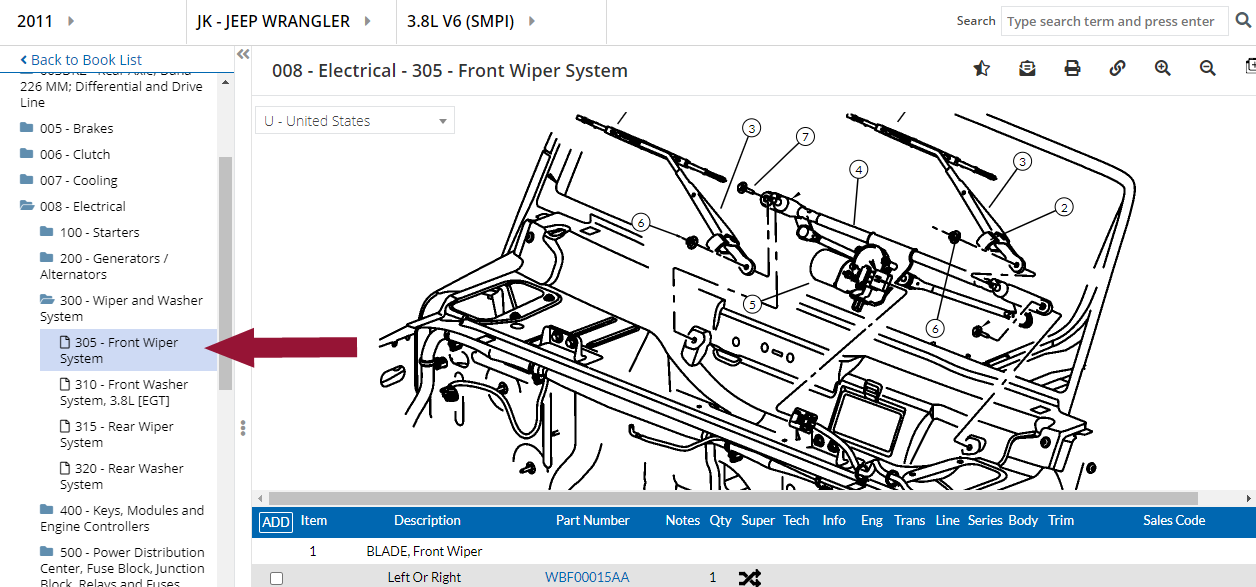
Select 'Go to Parts TOC' to go to the Service Library table of contents (TOC) for the VIN in order to find the correct parts section. Click the TOC entry to see the details on the right of the page:
-
Select the suggested parts section in the TOC based on the OP code and VIN. There may be more than one suggestion. The details appear immediately on the right of the page.
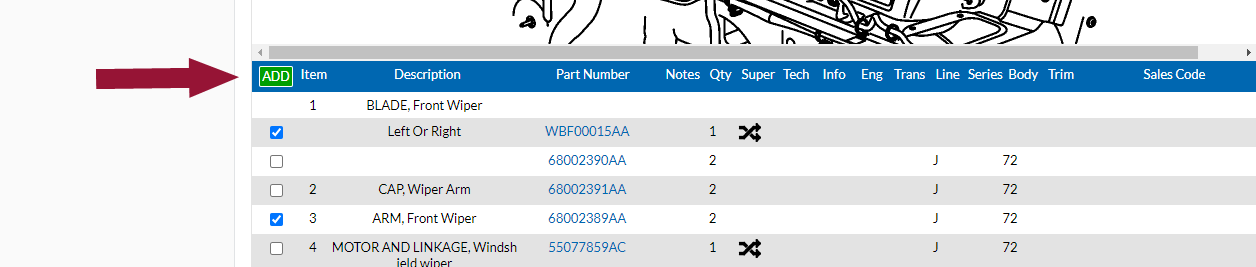
From the parts list at the bottom, select (check) the parts needed, and click “Add”:
The parts are added to the Parts Pick List window:
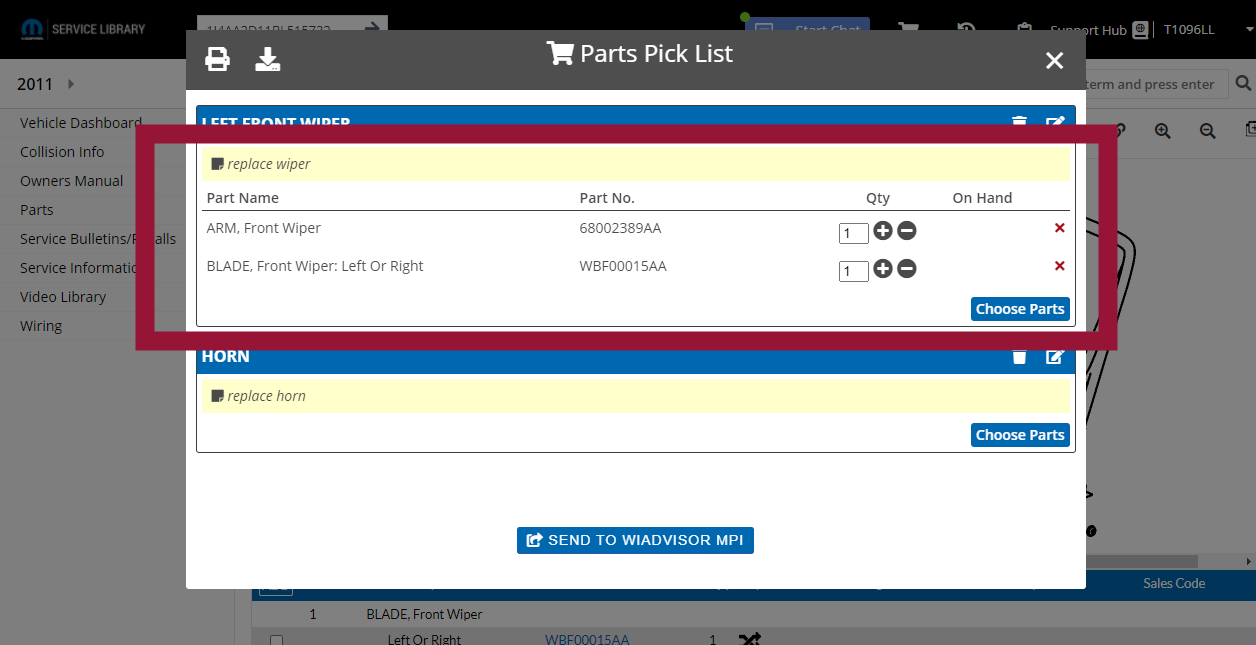
From the list, you can adjust the quantity if needed (+, -), delete a part (x) or click "Choose Parts" again to add more
Superseded parts

 in the 'Super' column of the list, you can change to one of the superseding parts.
To review the superseding parts, click the icon.
The Parts Inventory window opens and lists the superseding parts.
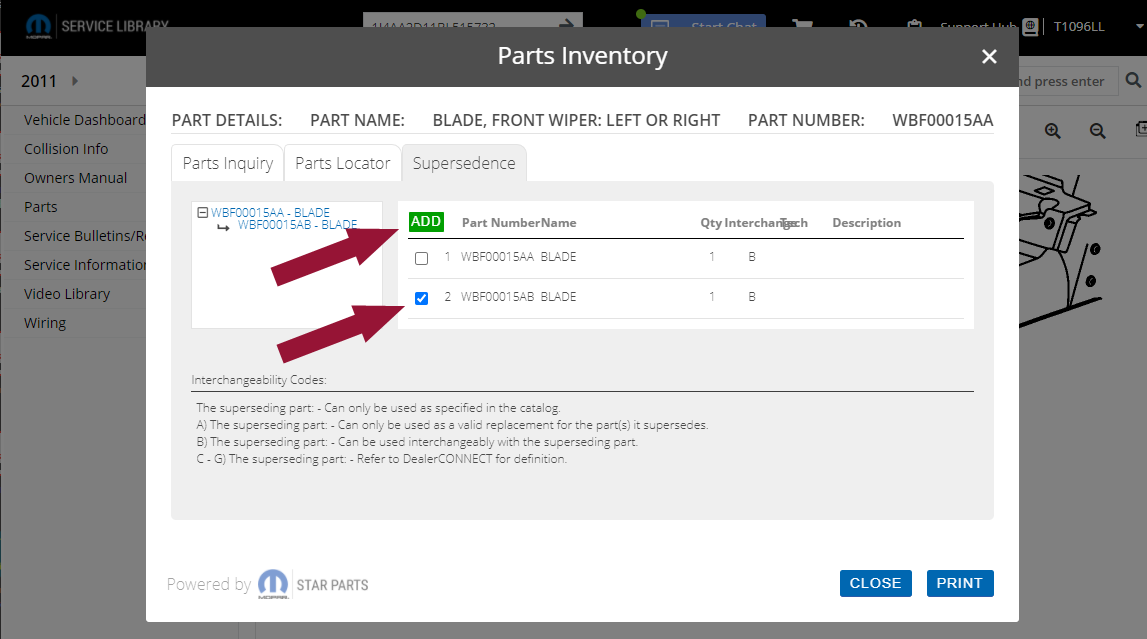
Select (check) the correct part from the Supersedence list, and click “Add”.
The part appears in the Parts Pick List window.
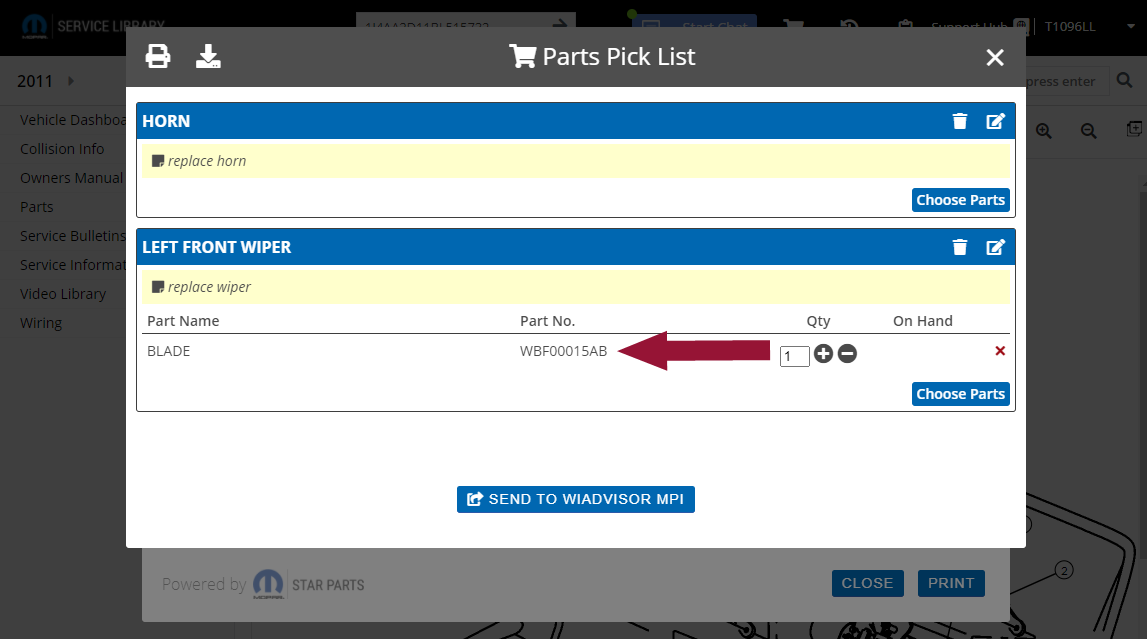
Note: To return to the same Parts Inventory window to add another part from the Supersedence list, click 'x' to close this window.
From the Parts Inventory window, click "Close" or 'x' to return to the suggested parts list for the service. Additional parts can been added from there to the recommendation.
Additional Recommendations
To select parts for any other recommendations, first make sure all windows are closed then click the Shopping Cart  in the menu bar at the top of the page to reopen the Parts Pick List and use "Choose Parts" as described above.
Note: Use the Shopping Cart to re-open the Parts Pick List at any time.
When the parts list is ready, click “Send to wiADVISOR MPI” to import the data into TI:
A message appears if the integration is successful.
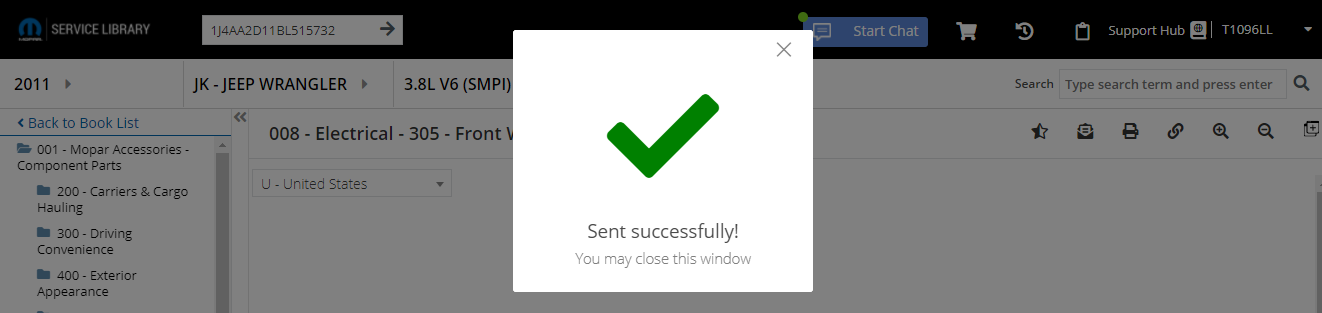
No further parts can be added to the MPI using this session of Service Library. Close the window and return to TI.
To add more parts, initiate the parts selection from the MPI in TI again.