Mobile Check-In Indicators
The following updates have been made to the Mobile Check-In (MCI) processes in order to improve the dealership experience.
Promise Time Calculation
(Previously released)
To ensure that an appropriate Promise Time is always assigned with Mobile Check-In, it is now set to 30 minutes prior to end-of-business-day on the day of the appointment. This is based on the Main department's business hours as configured in Appointment Manager Administration.
MCI Indicators
Additional indicators have been added to help the
Mobile Check-In Icon
When reviewing shown appointments in Appointment Manager, the user can quickly see which vehicles were checked-in via MCI.
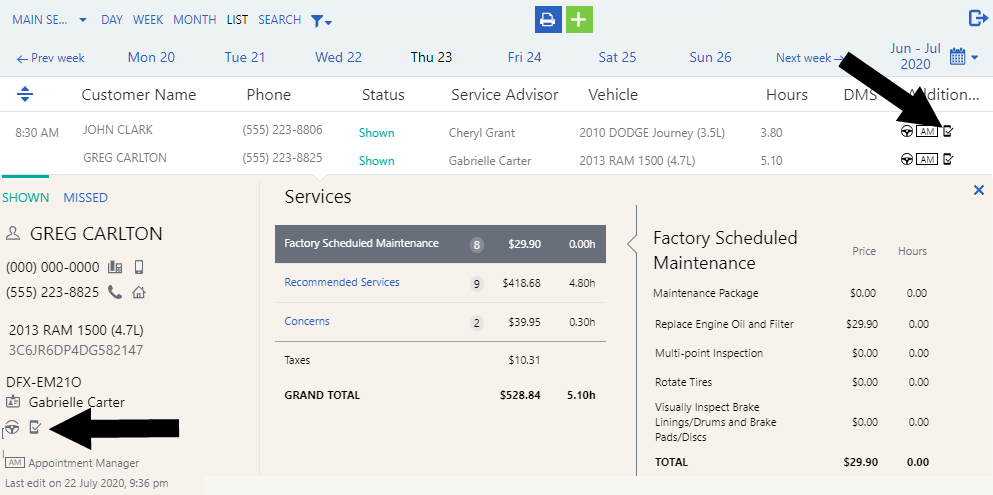
A "Mobile Check-In" icon  appears with the appointment in the List view.
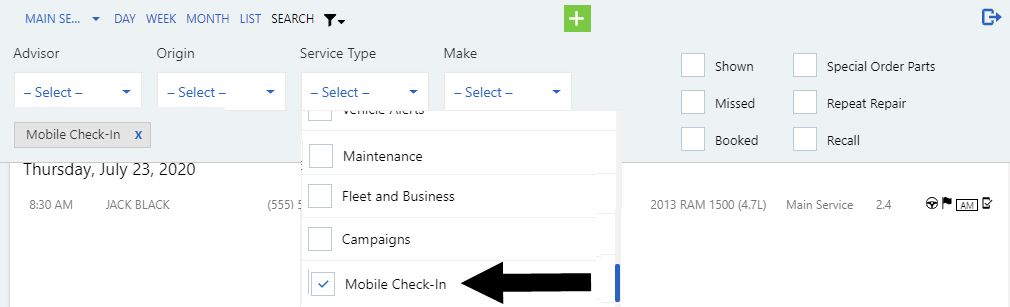
The appointment filter  includes a Mobile Check-In Service Type option.
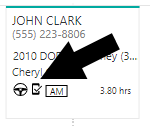
Appointment tiles include the "Mobile Check-In" icon.
Mobile Check-In Service Line
When the vehicle owner checks in with MCI, a Mobile Check-In service line is automatically added to the shown appointment for identification and tracking purposes.
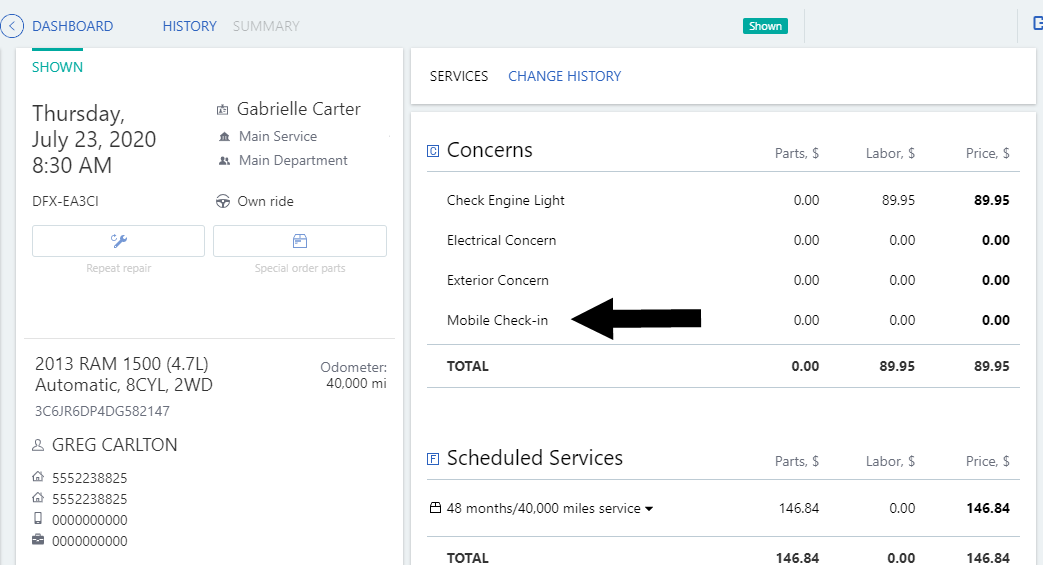
The service line appears in Appointment Manager with the shown appointment’s list of services, under Concerns.
The service is included in the Repair Order and is listed in the Pre-Write PDF. It can be configured to push to the DMS with the RO, if appropriate for the dealership. Refer to MCI Service Configuration for more information.
The service line appears in Service Dashboard with the services list for the service lane, and in Technician Inspection with the Concerns that appear on the Inspection and Approved Services pages.
Note: A Mobile Check-In service line cannot be manually added to an appointment. It is only used by the application to flag the appointment as being checked in by a vehicle owner with MCI.
MCI Service Configuration
(Dealer Administrator)
A new Mobile Check-In service category has been pre-defined as part of this implementation to allow for the configuration of the Mobile Check-In service lines for the dealership.
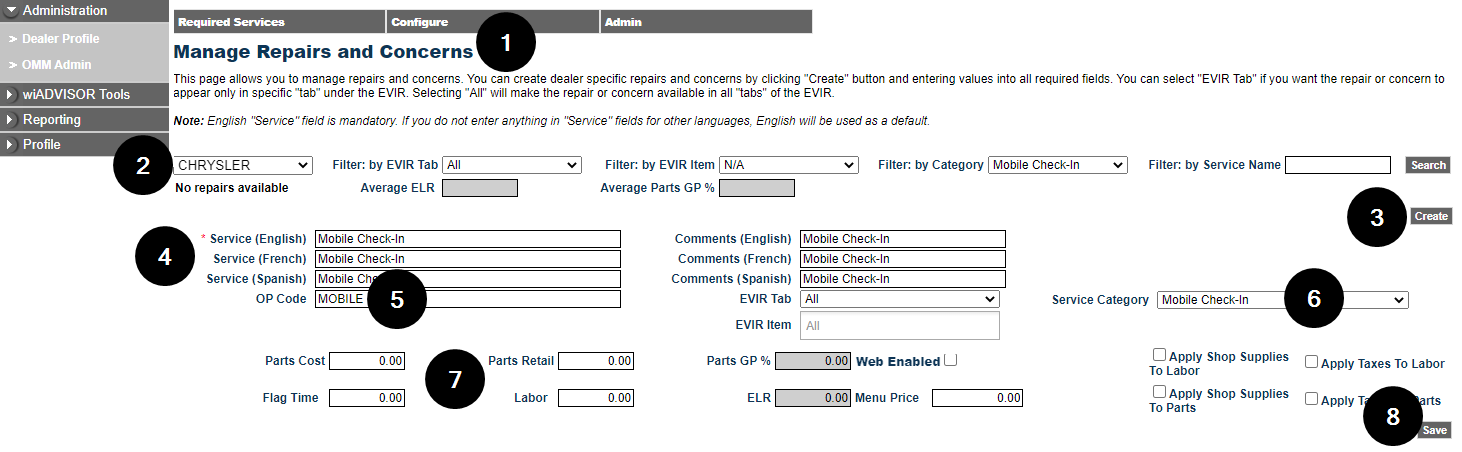
To enable the Mobile Check-In service line and icon, complete the following steps for each vehicle Make. If the service is not configured, the service line will not be added, and the MCI icon will not appear, when the vehicle is checked in with MCI.
- Go to OMM Admin > Configure > Repairs and Concerns
- Select a vehicle Make.
- Click “Create” to set up the new service.
- Enter the Service description(s). For example ‘Mobile Check-In’.
- Enter an OP Code.
- Select ‘Mobile Check-In’ for the Service Category.
- Pricing fields should be left as 0.
- Click “Save” then repeat these steps for each Make.
Note: The OP Code must also be set up in the DMS, if appropriate, so that the line successfully pushes with the RO.